 Pictius Free image editor in your browser
Batch edit images with Actions
When the same edits have to be made to dozens of images, record them once as an action and let Batch play it on every file: resize, adjust, add a border or a watermark, and save them all in the format you choose. Pictius does it in your browser, one file after another, without uploading anything.
- Free
- No install, no account
- Images stay on your device
- Layers, masks and AI
Record an action
An action is a list of steps with their settings. You record it by doing the work once on a sample image.
- Open a sample image and Window ▸ Actions (Alt+F9).
- If you like, click the folder button to create a set for your own actions.
- Click + to create a new action, give it a name and click Record. While it records, the panel shows Recording and the action’s name.
- Edit as usual. For example: Image ▸ Image Size… with a width of 1600 px, then Image ▸ Adjustments ▸ Levels…, then Filter ▸ Sharpen ▸ Unsharp Mask… Each operation appears as a step.
- Click Stop, the square button. Click the triangle next to a step to see its settings.
Run it on many files with Batch
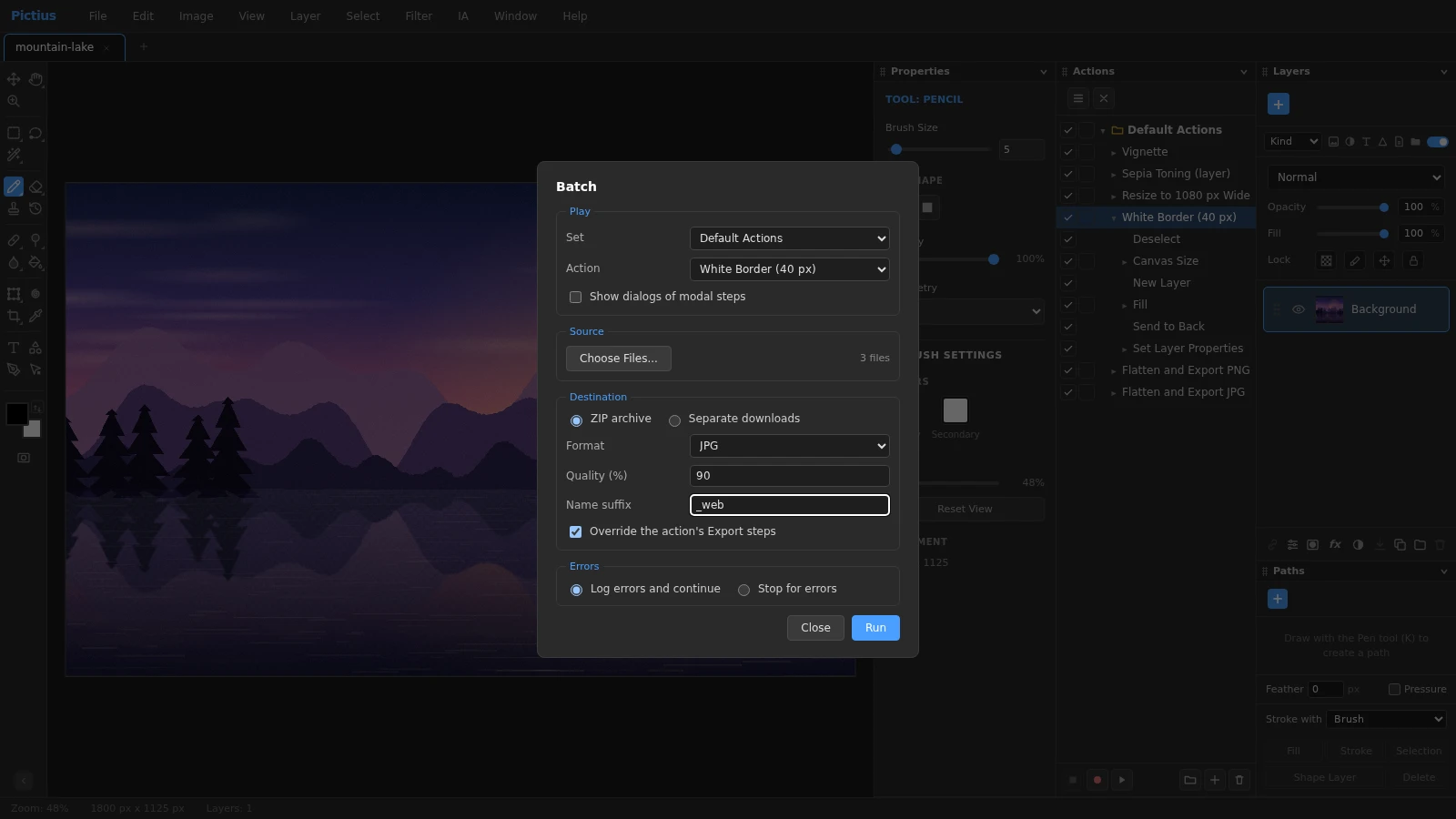
- Choose File ▸ Automate ▸ Batch…, or Batch… in the Actions panel menu.
- Under Play, choose the Set and the Action.
- Under Source, click Choose Files… and select the images. PSD files and .pictius projects work too.
- Under Destination, choose ZIP archive, Separate downloads or, in browsers that allow it such as Chrome and Edge, a Folder. Pick the Format (PNG, JPG, WebP, PSD with layers or a Pictius project), the Quality for JPG and WebP, and a Name suffix such as _web.
- Click Run. A progress bar shows each file, and a summary lists any file that failed.
What can be recorded
- Recorded: Image Size, Canvas Size, rotating and flipping the canvas, adjustments and adjustment layers, filters, Edit ▸ Fill, layer styles, Layer Properties, layer commands such as Duplicate, Merge and Flatten, layer masks, selection commands such as Select ▸ All, Select ▸ Inverse and Select ▸ Feather…, Rectangle and Ellipse selections, Free Transform, Copy and Paste, Align and exports.
- Not recorded: brush and retouching strokes, the Move tool, lasso, Magic Wand and Quick Selection selections, typing text, Select Subject, Select and Mask, and opening or saving files.
- The Default Actions set has Vignette, Sepia Toning (layer), Resize to 1080 px Wide, White Border (40 px), Flatten and Export PNG and Flatten and Export JPG, ready to use or to copy.
Edit, share and back up actions
Untick a step to skip it. Turn on the dialog toggle next to a step to make it stop and show its dialog, so you can adjust it; in Batch, tick Show dialogs of modal steps for that. Drag steps to reorder them, select a step and click Record to add more after it, and Ctrl+click Play to run only the selected step.
Actions are stored in your browser. Use Export Set… in the panel menu to save a set as a file, and Import Actions… to load it in another browser or on another computer.
Frequently asked questions
How many images can I process at once?
There is no fixed limit. Files are opened and processed one at a time, so the time depends on their size and on the steps. Very large files, such as big layered PSDs, take longer.
Are my original files changed?
No. Results are saved as new files in a ZIP archive, as downloads or in the folder you choose. If you pick the folder your originals are in, add a Name suffix so no file is replaced.
Can each image get different settings?
Yes. Turn on the dialog toggle of the steps you want to adjust and tick Show dialogs of modal steps in Batch. The run then stops at those dialogs for every image; Cancel ends the batch.
Why is a step missing from my action?
Some operations are not recorded, such as brush strokes, the Move tool or freehand selections. Use their recordable equivalents: Rectangle or Ellipse selections, Layer ▸ Align ▸ Left Edges and similar commands, or Edit ▸ Free Transform.
Are my images uploaded during a batch?
No. Pictius opens, edits and saves every file in your browser, on your own computer.
Image editing guides
- Remove the background from an imageRemove the background from a photo in your browser: select the subject with AI, refine the edges with a layer mask and export a transparent PNG. No uploads.
- Remove objects from a photoErase unwanted objects, people or text from a photo: select them and use Content-Aware Fill, AI Fill, Spot Healing or Patch. Everything runs in your browser.
- Cut out hair and objects preciselyCut out people, hair, pets and products: start with Quick Selection or Select Subject, refine the edge in Select and Mask and output a layer mask or a new layer.
- Blur the background of a photoBlur the background of a photo to make the subject stand out: use Portrait Mode, or select the subject and apply Gaussian Blur to the rest. Free, in your browser.
- Resize an imageResize an image to exact pixels or a percentage with Image Size, choose the resampling method, and add or trim space around it with Resize Canvas. Free and private.
- Crop and straighten a photoCrop a photo to a ratio such as 1:1, 4:5 or 16:9, straighten a tilted horizon, fix perspective with Perspective Crop and trim empty borders. Free, in your browser.
- Upscale an imageEnlarge a small image with Super Resolution 2x, which doubles its size with smooth interpolation and sharpening, or pick an exact size and method in Image Size.
- Convert an image to another formatConvert images in your browser: open PNG, JPG, WebP, AVIF, GIF or PSD files and export PNG, JPG, WebP, GIF, SVG, PDF or TIFF with the quality and scale you choose.
- Images at the right size for social mediaMake images at the right size for Instagram, Facebook, YouTube and more: crop to a preset ratio or use Export for Social Media to resize and save in one step.
- Open and edit PSD files onlineOpen PSD files in your browser with their layers, groups, masks, adjustment layers and effects, see what is kept or approximated, and export PSD, PNG or JPG.
- Add text to an imageAdd text to a photo with editable text layers: set font, size, color and spacing in the Character and Paragraph panels, then add a shadow or stroke with Layer Style.
- Add a watermark to your photosAdd a text or logo watermark to a photo, set its opacity and blend mode, then record it as an Action and apply it to many images at once with Batch.
- Adjust color and exposureFix dark, flat or off-color photos with Levels, Curves, Hue/Saturation and Shadows/Highlights, and keep every edit reversible with adjustment layers.
- Remove blemishes and red eyeRetouch portraits in your browser: remove spots and blemishes with Spot Healing and Healing, clone away distractions with Clone Stamp and fix red eye with one click.
- Layers and masks explainedLearn layers in Pictius: groups, blend modes, layer masks and clipping masks, adjustment layers, and .pictius project files that keep every layer editable.