 Pictius Free image editor in your browser
Remove objects from a photo
Draw a loose selection around what you want to remove and fill it with Content-Aware or AI Fill: Pictius rebuilds the area from its surroundings. For small spots, paint over them with the Spot Healing Brush. The photo is processed on your own computer.
- Free
- No install, no account
- Images stay on your device
- Layers, masks and AI
Remove an object with Content-Aware Fill
This is the quickest way to remove a person, a sign, a cable or a stain from a larger area.
- Open the photo with File ▸ Open… (Ctrl+O). To keep the original, duplicate the layer with Layer ▸ Layer via Copy (Ctrl+J) and work on the copy.
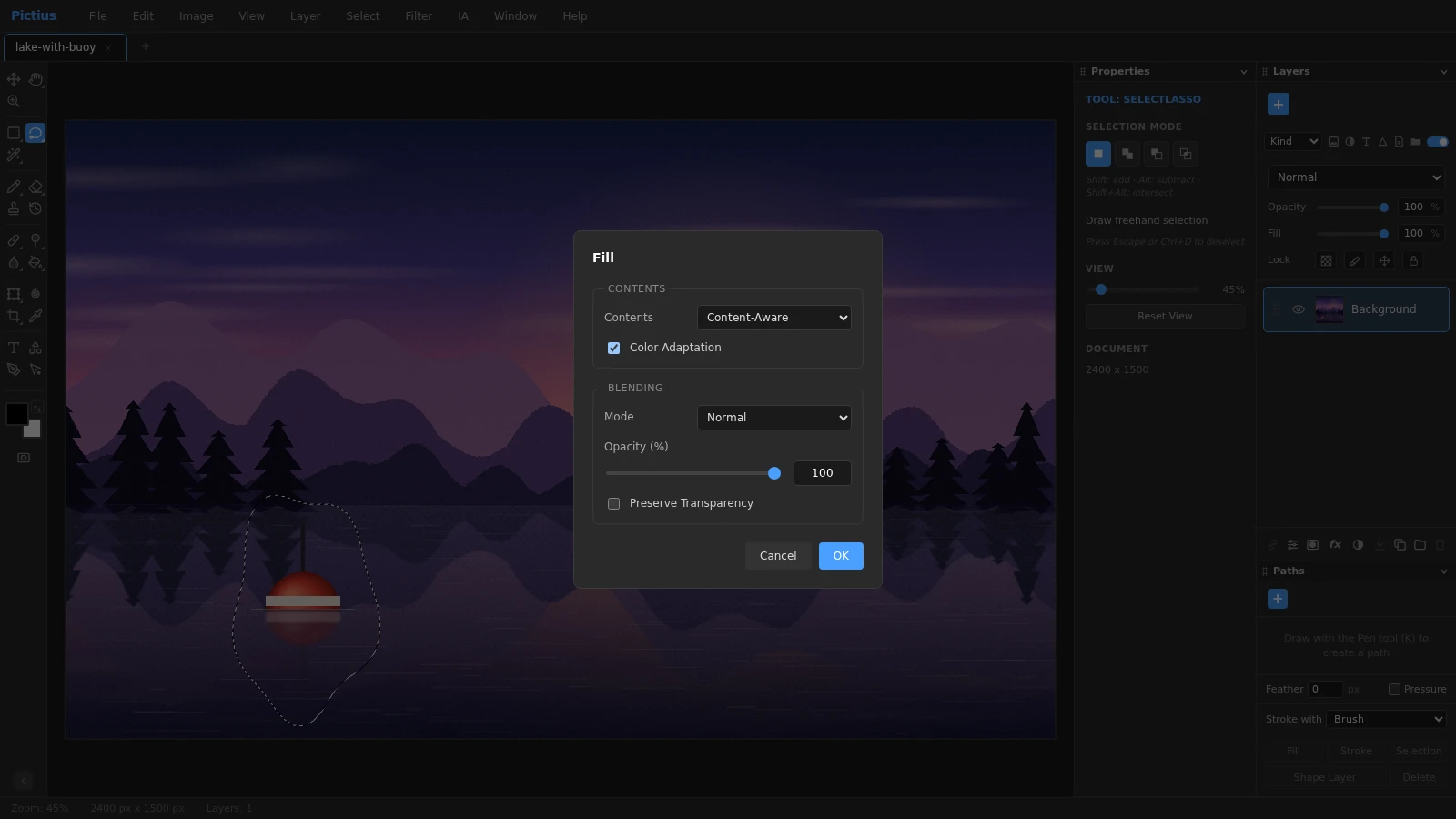
- Press L for the Lasso and draw around the object, leaving a small margin. Include its shadow and reflection, or they will stay behind.
- Choose Edit ▸ Fill… (Shift+F5) and set Contents to Content-Aware. Keep Color Adaptation on when the surroundings change in brightness, such as a sky or a wall in shade.
- Click OK. Small areas are filled at once; large ones show a progress bar with a Cancel button.
- Deselect with Ctrl+D and zoom in to check the result. If it is not convincing, undo with Ctrl+Z, change the selection and try again, or try AI Fill.
Content-Aware or AI Fill?
Content-Aware copies patches from the same photo, so it shines on texture: grass, sand, water, foliage, skies and plain walls. Nothing outside the selection changes.
AI Fill uses an inpainting model trained on many photos, which can continue edges and structures that do not repeat elsewhere in the picture. Pick it in the same Fill dialog, or go straight to IA ▸ AI Fill / Remove Object. There are two models: MI-GAN (fast, about 28 MB) and LaMa (high quality, about 208 MB). The first time, Pictius tells you the size and asks before downloading; after that the model works offline. Both need a selection with enough untouched image around it to work from.
Small spots: Spot Healing Brush
For dust, birds in the sky, litter on the ground or a stray hair, press J for the Spot Healing Brush, set the size with [ and ], and paint over the spot. It is rebuilt from the area around it when you release the mouse. In the Properties panel, Type chooses how: Content-Aware, AI, Create Texture or Proximity Match.
More control: Patch and Clone Stamp
- Patch (press J until it is active): draw around the object, then drag the selection to a clean area of the photo. The object is replaced with what lies under the outline, blended into its surroundings. Diffusion changes how softly it blends.
- Clone Stamp (S): Alt+click a clean area to set the source, then paint over the object. It copies pixels exactly, which is useful for straight lines, edges and repeating patterns that the automatic tools may bend.
- Combine them: fill most of the object with Content-Aware, then clean the leftovers with the Spot Healing Brush.
Frequently asked questions
Can I remove a person from a photo?
Yes. Select the person with the Lasso, including their shadow, and use Edit ▸ Fill… with Content-Aware or AI Fill. People in front of busy scenes may need a second pass on the leftovers.
Does AI Fill work offline?
Once its model has been downloaded, yes. The model is kept in your browser, so you only download it once. Your photo is never uploaded.
Why does the filled area repeat parts of the photo?
Content-Aware builds the fill from patches of the same image. If a pattern repeats, make the selection tighter, fill in two smaller steps, or switch to AI Fill.
Do pixels outside the selection change?
No. Both Content-Aware and AI Fill only write inside the selection. Anything outside stays exactly as it was.
Why does AI Fill say there are not enough pixels around the selection?
The model needs untouched image around the hole, and transparent areas count as part of the hole. Select a smaller area, fill it in parts, or work on a layer that covers the whole photo.
Image editing guides
- Remove the background from an imageRemove the background from a photo in your browser: select the subject with AI, refine the edges with a layer mask and export a transparent PNG. No uploads.
- Cut out hair and objects preciselyCut out people, hair, pets and products: start with Quick Selection or Select Subject, refine the edge in Select and Mask and output a layer mask or a new layer.
- Blur the background of a photoBlur the background of a photo to make the subject stand out: use Portrait Mode, or select the subject and apply Gaussian Blur to the rest. Free, in your browser.
- Resize an imageResize an image to exact pixels or a percentage with Image Size, choose the resampling method, and add or trim space around it with Resize Canvas. Free and private.
- Crop and straighten a photoCrop a photo to a ratio such as 1:1, 4:5 or 16:9, straighten a tilted horizon, fix perspective with Perspective Crop and trim empty borders. Free, in your browser.
- Upscale an imageEnlarge a small image with Super Resolution 2x, which doubles its size with smooth interpolation and sharpening, or pick an exact size and method in Image Size.
- Convert an image to another formatConvert images in your browser: open PNG, JPG, WebP, AVIF, GIF or PSD files and export PNG, JPG, WebP, GIF, SVG, PDF or TIFF with the quality and scale you choose.
- Images at the right size for social mediaMake images at the right size for Instagram, Facebook, YouTube and more: crop to a preset ratio or use Export for Social Media to resize and save in one step.
- Open and edit PSD files onlineOpen PSD files in your browser with their layers, groups, masks, adjustment layers and effects, see what is kept or approximated, and export PSD, PNG or JPG.
- Add text to an imageAdd text to a photo with editable text layers: set font, size, color and spacing in the Character and Paragraph panels, then add a shadow or stroke with Layer Style.
- Add a watermark to your photosAdd a text or logo watermark to a photo, set its opacity and blend mode, then record it as an Action and apply it to many images at once with Batch.
- Adjust color and exposureFix dark, flat or off-color photos with Levels, Curves, Hue/Saturation and Shadows/Highlights, and keep every edit reversible with adjustment layers.
- Remove blemishes and red eyeRetouch portraits in your browser: remove spots and blemishes with Spot Healing and Healing, clone away distractions with Clone Stamp and fix red eye with one click.
- Layers and masks explainedLearn layers in Pictius: groups, blend modes, layer masks and clipping masks, adjustment layers, and .pictius project files that keep every layer editable.
- Batch edit images with ActionsRecord your edits once as an Action and play it on many images with Batch: resize, adjust, watermark and export them all in one go, right in your browser.