 Pictius Free image editor in your browser
Add text to an image
With the Text tool you type straight onto the image, and the words stay editable: change the wording, font, size or color whenever you like, and add a shadow or an outline that follows the text. Here is how to add text to a photo in Pictius, from a one-line caption to a block of paragraphs.
- Free
- No install, no account
- Images stay on your device
- Layers, masks and AI
Add text step by step
Every text you add becomes its own text layer, above the layer that is selected.
- Open your photo with File ▸ Open… (Ctrl+O).
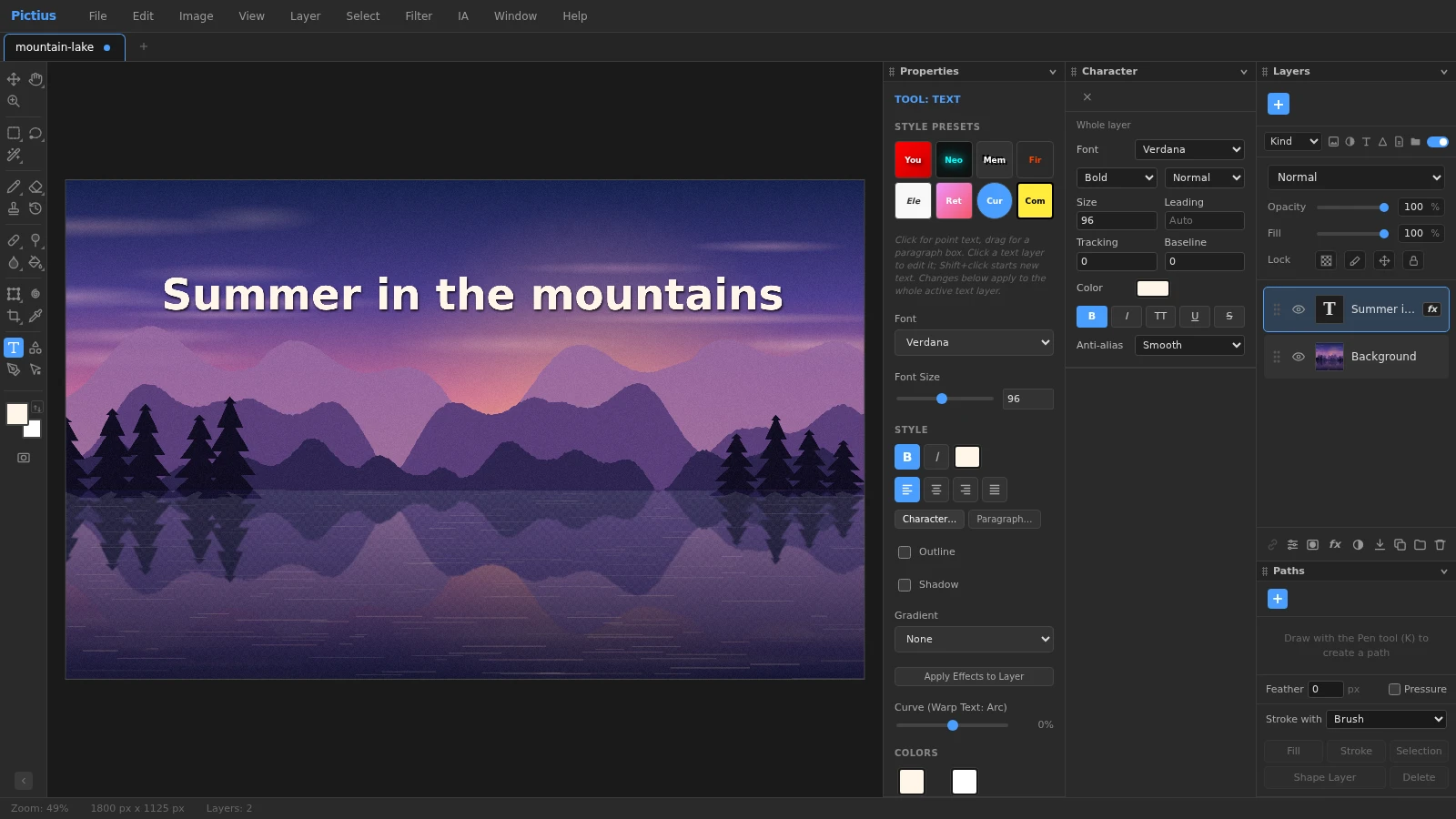
- Press T for the Text tool. In the Properties panel, choose a font, a size and a color before you start; you can change them later.
- Click where the text should begin for a single line (point text), or drag a box for text that wraps inside it (paragraph text).
- Type your text. Enter starts a new paragraph.
- Finish with Ctrl+Enter, the ✓ Commit button or a click outside the text. Escape cancels.
- Press V for the Move tool and drag the text into place.
Style the text
Settings apply to the whole layer, or only to the characters you have selected while editing.
- Properties panel, with the Text tool active: Font, Font Size, bold, italic, color, alignment, ready-made Style Presets, Outline, Shadow, Gradient and Curve, which bends the line into an arc.
- Window ▸ Character: font and weight from Thin to Black, Size, Leading (line spacing), Tracking (letter spacing), Baseline shift, All Caps, Underline, Strikethrough and anti-aliasing.
- Window ▸ Paragraph: left, center, right or justified alignment, left and right indents, first-line indent, and space before or after each paragraph.
- While typing: Ctrl+B, Ctrl+I and Ctrl+U for bold, italic and underline; Ctrl+Shift+L, C, R or J to align; Ctrl+Shift+< and Ctrl+Shift+> to make the selected text smaller or larger.
Make it readable with layer styles
Text over a busy photo is easier to read with an effect. With the text layer selected, choose Layer ▸ Layer Effects ▸ Drop Shadow… or Layer ▸ Layer Effects ▸ Stroke…, or click fx at the bottom of the Layers panel. Layer ▸ Layer Style… opens every effect in one dialog, including Outer Glow, Gradient Overlay and Bevel & Emboss.
Effects follow the text when you retype it. The Outline, Shadow and Gradient options of the Text tool do the same job: new text gets them as layer effects, and Apply Effects to Layer adds them to existing text.
Edit it later
To change the words, click on the text with the Text tool, or double-click the T thumbnail of the layer in the Layers panel. Shift+click starts a new text on top of an existing one.
Save with File ▸ Save (Ctrl+S) to keep the text editable in a .pictius project. PSD files keep text layers too. PNG, JPG and WebP flatten everything into pixels, so keep the project if you may need to correct a typo.
Frequently asked questions
Which fonts can I use?
The font list offers common fonts such as Arial, Helvetica, Verdana, Georgia, Times New Roman, Courier New and Impact, drawn with the fonts installed on your computer. You cannot load your own font files into Pictius.
How do I curve text?
Select the text layer with the Text tool active and move the Curve slider in the Properties panel. Positive and negative values bend the line into an arc in opposite directions, and Reset Curve straightens it again.
Why does Pictius ask to rasterize my text?
Painting tools and filters change pixels, and a text layer is drawn from its words. Pictius asks before converting it to pixels, after which the text is no longer editable. Layer ▸ Rasterize ▸ Type does it on purpose.
Can I add text to many photos at once?
Not with the Text tool itself, because typing is not recorded in Actions. You can copy finished text as an image and paste it into many photos with an action and File ▸ Automate ▸ Batch…, as the watermark guide explains.
Does the text stay sharp when I resize the image?
Yes. A text layer is redrawn from its settings at the new size, so it stays crisp after Image ▸ Image Size… or Edit ▸ Free Transform, unlike text that has been rasterized.
Image editing guides
- Remove the background from an imageRemove the background from a photo in your browser: select the subject with AI, refine the edges with a layer mask and export a transparent PNG. No uploads.
- Remove objects from a photoErase unwanted objects, people or text from a photo: select them and use Content-Aware Fill, AI Fill, Spot Healing or Patch. Everything runs in your browser.
- Cut out hair and objects preciselyCut out people, hair, pets and products: start with Quick Selection or Select Subject, refine the edge in Select and Mask and output a layer mask or a new layer.
- Blur the background of a photoBlur the background of a photo to make the subject stand out: use Portrait Mode, or select the subject and apply Gaussian Blur to the rest. Free, in your browser.
- Resize an imageResize an image to exact pixels or a percentage with Image Size, choose the resampling method, and add or trim space around it with Resize Canvas. Free and private.
- Crop and straighten a photoCrop a photo to a ratio such as 1:1, 4:5 or 16:9, straighten a tilted horizon, fix perspective with Perspective Crop and trim empty borders. Free, in your browser.
- Upscale an imageEnlarge a small image with Super Resolution 2x, which doubles its size with smooth interpolation and sharpening, or pick an exact size and method in Image Size.
- Convert an image to another formatConvert images in your browser: open PNG, JPG, WebP, AVIF, GIF or PSD files and export PNG, JPG, WebP, GIF, SVG, PDF or TIFF with the quality and scale you choose.
- Images at the right size for social mediaMake images at the right size for Instagram, Facebook, YouTube and more: crop to a preset ratio or use Export for Social Media to resize and save in one step.
- Open and edit PSD files onlineOpen PSD files in your browser with their layers, groups, masks, adjustment layers and effects, see what is kept or approximated, and export PSD, PNG or JPG.
- Add a watermark to your photosAdd a text or logo watermark to a photo, set its opacity and blend mode, then record it as an Action and apply it to many images at once with Batch.
- Adjust color and exposureFix dark, flat or off-color photos with Levels, Curves, Hue/Saturation and Shadows/Highlights, and keep every edit reversible with adjustment layers.
- Remove blemishes and red eyeRetouch portraits in your browser: remove spots and blemishes with Spot Healing and Healing, clone away distractions with Clone Stamp and fix red eye with one click.
- Layers and masks explainedLearn layers in Pictius: groups, blend modes, layer masks and clipping masks, adjustment layers, and .pictius project files that keep every layer editable.
- Batch edit images with ActionsRecord your edits once as an Action and play it on many images with Batch: resize, adjust, watermark and export them all in one go, right in your browser.